Your documentation started with a limited set of pages tied to a limited set of features. Over time, new features were built, older versions stayed around for compatibility, and the original pages kept collecting links and traffic.
Now the same feature appears in several places, with each page describing a slightly different state of the product. The method below helps you decide which page owns the answer, where it belongs, and what happens to the old URLs.
The recovery method
Reorganizing existing documentation is a cleanup project with six distinct decisions. Treating it as a navigation redesign is how teams end up moving the mess into a prettier menu.
| Step | What you are deciding | Where this article helps |
|---|---|---|
| 1. Freeze the current state | Which pages, URLs, links, and versions exist today | Inventory the pages |
| 2. Find the reader jobs | Which tasks people are actually trying to complete | Start with reader routes |
| 3. Choose the canonical answer | Which page owns each question and which pages are duplicates | Give every page one primary home |
| 4. Rebuild the routes | How sections, landing pages, and navigation help people move | Build sections around a coherent job |
| 5. Move URLs safely | Which pages redirect, merge, stay, or return a 404 |
Make URLs reflect the structure |
| 6. Stop the same drift | Which release events trigger a documentation review | Measure whether the new structure works |
Start with an inventory. It shows the duplicate answers, stale versions, and orphan pages that have to shape the new sidebar.
Start with reader routes
If the structure is working, someone can move from a question to a result without learning your org chart. Product modules and repository folders still matter to maintainers, but they’re rarely the best starting point for a new user.
Begin with five to ten tasks that bring people to the site:
- Evaluate whether the product fits a use case.
- Create an account or project.
- Complete the first working integration.
- Configure a production environment.
- Look up an API field or command.
- Diagnose a failed request.
- Upgrade without breaking existing behavior.
These are routes, not navigation labels yet. They reveal which pages must sit together and where readers need a choice explained.
Separate audience from task
An administrator and an application developer may both need authentication documentation, but they need different parts of it. Separate audiences when their permissions, terminology, or workflows materially differ.
An “Administrators” section earns its place when it offers a coherent route that would interrupt other readers. The existence of an administrator role alone is not enough.
Include the whole product lifecycle
Many documentation sites are designed around acquisition and stop after the quickstart. Production setup, monitoring, troubleshooting, upgrades, deprecations, and removal are left to search.
Map at least one route through setup, routine use, failure, and change. A product is not fully documented if the navigation only works before deployment.
Give each navigation layer one job
Most developer portals end up with at least three levels of navigation. Things get messy when every level repeats the same links or tries to expose the entire library.
Site navigation chooses the product area
The top-level navigation answers broad questions: am I reading guides, API reference, SDK documentation, release information, or support material? Keep this layer stable because it shapes the reader’s mental model of the whole site.
Global labels should survive product releases. A feature name that may disappear next quarter is usually too narrow for the top bar.
Section navigation shows the local route
The sidebar or section menu answers what belongs to the current product area and what comes next. Here, setup, concepts, tasks, reference, troubleshooting, and upgrades can form a usable sequence.
The AWS Lambda developer guide shows the three layers clearly: AWS-level destinations in the header, Lambda guide sections in the left navigation, and headings for the current page on the right.
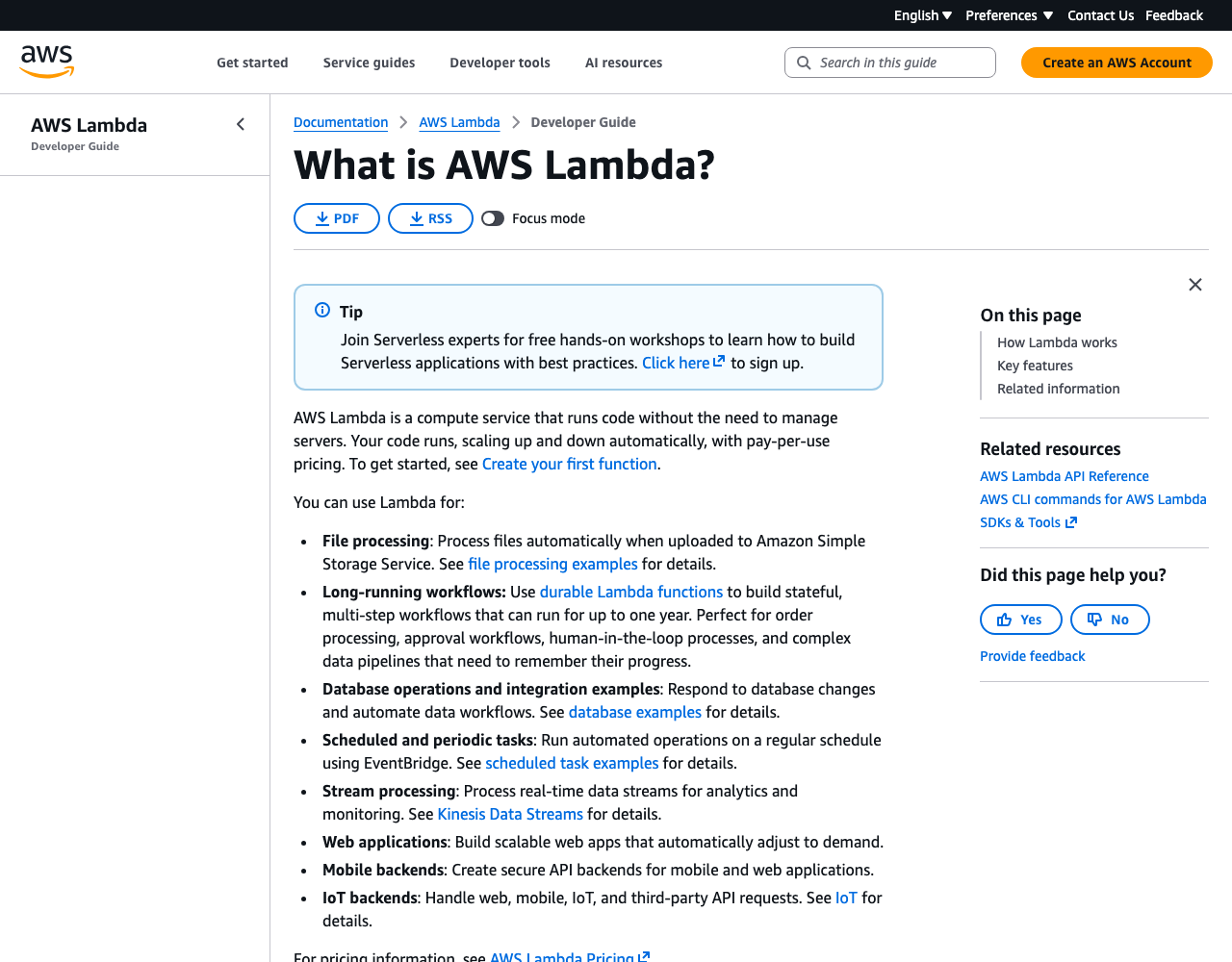
The header chooses a destination, the sidebar places the page inside the Lambda guide, and the page menu exposes only the current document. Each navigation area has a separate job.
Page navigation exposes the argument
An on-page table of contents helps someone scan a long document and jump to a section. It cannot repair a page that combines five unrelated tasks.
If the table of contents reads like a miniature site map, split the page. Keep the sections that share one intent and move independent work into linked pages.
Build sections around a coherent job
A section needs a recognizable audience, a bounded subject, and several pages that support the same route. “Resources” has none of those properties.
Better section labels tell readers what they can work on:
- Build your first integration
- Authenticate API requests
- Deploy to production
- Monitor and troubleshoot
- Manage versions and upgrades
The job needs to be visible in the label. Labels such as Overview, Advanced, Miscellaneous, and Other force readers to open pages before they can understand the category.
Keep document types close to the task
Tutorials, how-to guides, reference, and explanation solve different reader needs, as the Diátaxis framework explains. That does not mean every documentation site needs four giant top-level buckets with those names.
Place a deployment concept beside the deployment task when readers need them together. Keep API reference recognizable as reference because developers frequently browse it directly.
Readers do not care whether the taxonomy is theoretically pure. They care whether the next choice makes sense.
Give every page one primary home
A page can be linked from several routes, but it should have one canonical location. Duplicating the same instructions under several sections creates competing search results and guarantees that one copy will become stale.
GitLab’s documentation folder guidance uses meaningful paths tied to audiences and product areas. Related pages link back to one source and keep it current.
Use landing pages to orient, not delay
When someone lands on a section page, they need to know what belongs there and where to start. A wall of equal-looking cards pushes that decision back onto them.
Answer three questions
The opening of a landing page should answer:
- What can I accomplish in this section?
- Where should I start?
- Which route applies to my situation?
A short decision table can work better than twelve cards:
| If you need to… | Start here |
|---|---|
| Prove the product works | Quickstart |
| Build a complete first project | Tutorial |
| Add one feature to an existing project | How-to guides |
| Look up an exact field or method | API reference |
| Fix a failed integration | Troubleshooting |
The page can then introduce deeper groups in the order readers are likely to need them.
Make the first link count
People scan from the top left, and assistive technology can expose links without the surrounding paragraph. Use the most likely starting point early and give every link descriptive text.
“Get started with the JavaScript SDK” is useful outside its sentence. “Click here” and “Learn more” are not.
Make URLs reflect the structure
A readable URL tells readers and maintainers where a page belongs. Clear paths also make migration maps easier to reason about.
For example:
/docs/api/authentication/
/docs/api/errors/
/docs/sdks/javascript/installation/
/docs/guides/webhooks/verify-signatures/
Avoid encoding every navigation label into the path. Deep URLs become fragile when a wording change should not require a redirect.
Keep paths stable when labels improve
Navigation copy can change without moving the page. Rename a sidebar label when it helps readers, but change the URL only when the old path is misleading or the content has genuinely moved.
When a path must change, add a permanent redirect and update internal links. Leaving both URLs indexable creates two addresses for the same answer.
Connect repository and site structure carefully
Matching source folders to published sections can make ownership and review easier. GitLab notes that its meaningful repository paths map to documentation URLs, which reduces the gap between authoring and publication.
The mapping is useful, but the website should not expose an internal monorepo layout that readers cannot understand. Treat the reader-facing structure as the requirement and adapt the build system around it.
Keep navigation shallow without making it flat
You’ll often hear that everything has to be within three clicks, but that isn’t much of a design method. A flat list of sixty pages may take fewer clicks and still be harder to use than three well-labelled levels.
Depth is acceptable when each choice narrows the route. The warning sign is a level that adds no information, such as Documentation → Resources → Guides → How-to guides.
Limit what opens at once
Keep the full site tree out of local sidebars. Show the current branch, its siblings, and a clear route back to the section root.
Google Cloud’s documentation uses global categories, a product-area tree, breadcrumbs, and an on-page menu without placing every Cloud product in the local sidebar.
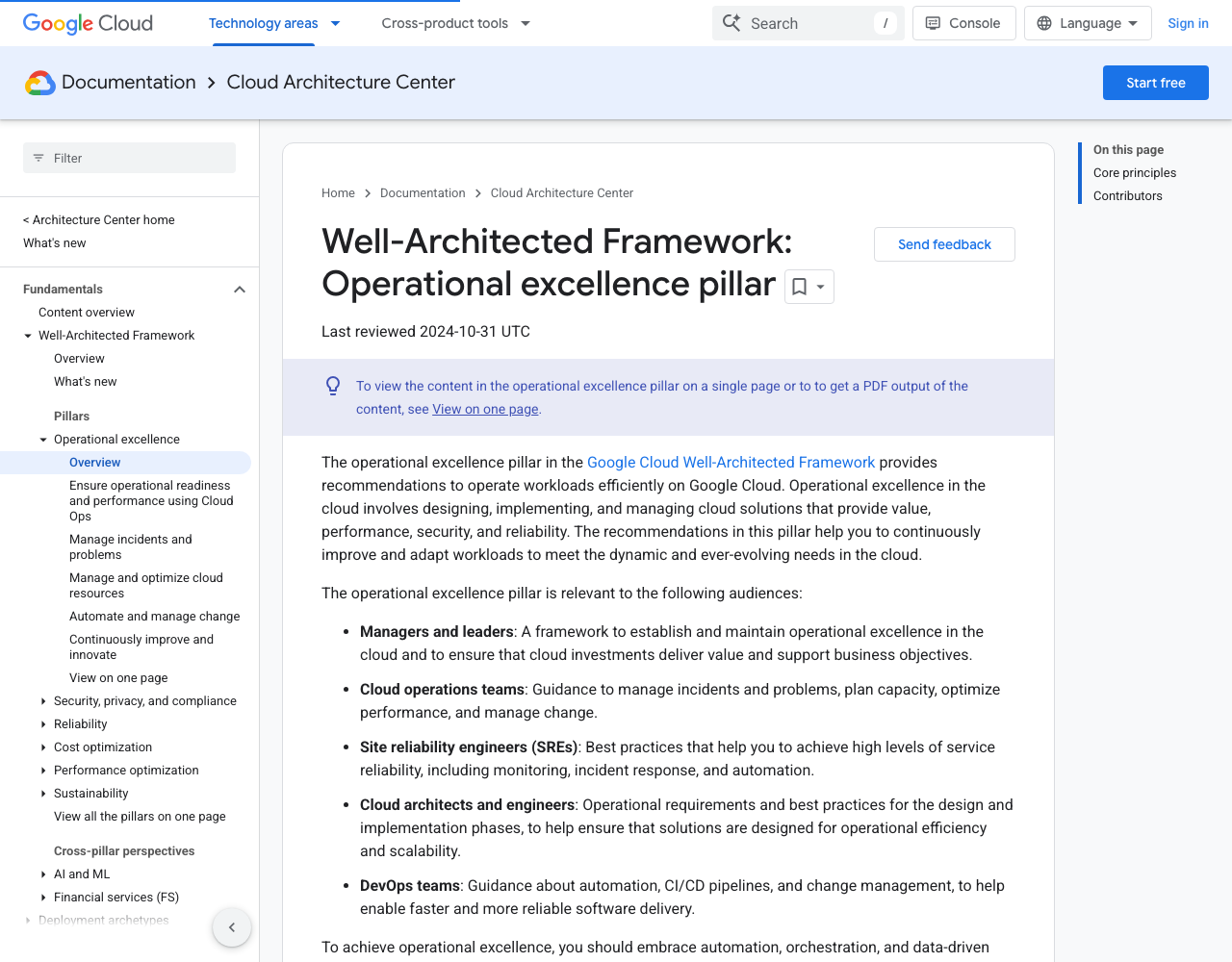
The left navigation exposes the current architecture branch. Breadcrumbs preserve the wider context.
Treat search as another route
Search should help with exact terms, error messages, and pages a reader has seen before. It should not be the only way to discover ordinary setup or production tasks.
Use the same names in navigation, headings, UI text, and search metadata. A feature with four internal names will create four weak routes to the same answer.
Test the structure before rebuilding
And you can test most of this with a spreadsheet or a small card sort. You don’t need a new documentation platform to find a confusing label.
Run findability tasks
Give someone representative tasks without telling them which label to choose:
- Your webhook signature check returns
401. Where would you look? - You need to know whether Node.js 18 is still supported.
- You want to send the first request with Python.
- You are planning an upgrade from version 2 to version 3.
Ask them to point to a destination in the proposed tree and explain the choice. Hesitation between two labels is evidence that the distinction is unclear.
Check every page for a parent
Export the proposed URLs and record one primary parent for each page. Orphan pages, duplicate homes, and sections with a single unexplained child become obvious.
Then check the reverse question: does every landing page contain a useful introduction and links to its immediate children? A folder existing in the repository does not make its pages discoverable.
Test the page structure too
W3C’s page structure guidance explains how logical headings and landmarks help screen-reader, keyboard, mobile, and search users navigate. Site hierarchy and page hierarchy must support each other.
Keep one H1, nest headings in order, label navigation regions, and preserve a visible main-content route. A clean sidebar cannot compensate for a page made from styling-only headings.
Worked example: reorganize a growing API documentation site
Imagine a product called Orbit with 84 documentation pages. Its top navigation contains Getting Started, Guides, Features, Developers, Resources, API, Help, and Learn.
Several labels overlap, and the same authentication instructions appear under Getting Started, Developers, and API. Support sends direct links because customers cannot predict where errors or upgrades belong.
Inventory pages by task and evidence
Before dragging 84 titles into a new tree, add fields that explain what each page does:
| Field | Example |
|---|---|
| Current URL | /developers/api-auth/ |
| Page title | API authentication |
| Primary reader task | Send an authenticated API request |
| Audience | Application developer |
| Content type | How-to guide |
| Product area | Platform API |
| Lifecycle stage | Setup |
| Evidence | Search traffic, support links, product dependency |
| Overlap | /getting-started/api-key/ |
| Proposed action | Consolidate and redirect |
The inventory separates a page’s current location from the job it should serve. Traffic and support evidence stop a popular but misplaced page from disappearing during cleanup.
Find routes in the inventory
Orbit’s pages reveal five recurring routes:
- Evaluate the API and choose an integration method.
- Create credentials and send the first request.
- Build common workflows such as imports and webhooks.
- Operate the integration through errors, limits, and monitoring.
- Upgrade API versions and SDKs.
Those routes become the spine of the new documentation. Product concepts and reference pages connect to the step where they help.
Draft the tree in plain text
A first version might look like this:
Documentation
├── Start
│   ├── API overview
│   ├── Create an API key
│   ├── Send your first request
│   └── Build your first integration
├── Guides
│   ├── Authentication
│   ├── Imports
│   ├── Webhooks
│   └── Production deployment
├── API reference
│   ├── Authentication
│   ├── Endpoints
│   ├── Errors
│   └── Rate limits
├── SDKs
│   ├── JavaScript
│   ├── Python
│   └── Go
├── Operate
│   ├── Troubleshoot requests
│   ├── Monitor usage
│   └── Security
└── Change
    ├── API versions
    ├── Migration guides
    ├── Changelog
    └── Release notes
“Start” is deliberately small, while “Operate” and “Change” repair the post-quickstart gap. Authentication appears in both Guides and API reference because one page teaches a workflow and the other records schemes and errors.
Resolve the apparent duplication
The authentication guide answers how to obtain a key, store it, send it, rotate it, and recover from failure. The reference page lists the supported schemes, header format, scope model, status codes, and exact error schema.
Each page links to the other at the point of need. They share a subject but do not satisfy the same intent.
The two old setup pages do satisfy the same intent, so their useful material moves into “Create an API key.” Both old URLs redirect to the new canonical page.
Write one landing page before migrating everything
Build the Start landing page with real links and ask users to complete three tasks. The test exposes label and sequence problems before the whole site moves.
A revealing first test is:
You have an account but no credentials. Find the shortest supported path to a successful API response.
If people open API reference before “Create an API key,” the label or placement may be wrong. If they complete setup but cannot prove the request worked, improve the task page.
Create a redirect map
Every moved or consolidated URL needs a destination and reason:
| Old URL | New URL | Action |
|---|---|---|
/developers/api-auth/ |
/docs/guides/authentication/ |
Permanent redirect |
/getting-started/api-key/ |
/docs/start/create-api-key/ |
Permanent redirect |
/resources/errors/ |
/docs/api-reference/errors/ |
Permanent redirect |
/features/webhooks/ |
/docs/guides/webhooks/ |
Permanent redirect |
/help/upgrade-v2/ |
/docs/change/migrate-v2-to-v3/ |
Permanent redirect |
Sending every removed page to the documentation homepage strands readers at a generic starting point. Preserve the old intent with a specific destination or return a clear 404 when no equivalent answer exists.
Measure whether the new structure works
After launch, compare task success, internal search queries, zero-result searches, support links, entrances on old URLs, and navigation paths. A lower bounce rate alone does not prove that people found the answer.
Watch for searches that repeat visible navigation labels. If “API errors” is searched constantly from inside API reference, the Errors route may be poorly placed or named.
The structure is never finished, but it should not change casually. Move pages when reader evidence shows the current route is failing, not whenever the organization chart changes.
Reorganization is also the cheapest point to fix structural barriers that repeat across a site. The documentation accessibility release checklist identifies the failures that should block the new structure from shipping.
The new hierarchy needs a clear entrance after those routes move. The documentation homepage guide explains how that entrance should expose first tasks and recovery paths.
Documentation site organization checklist
- The main reader routes include setup, use, failure, and change.
- Global navigation uses stable product-area labels.
- Every section serves a coherent audience or job.
- Every page has one primary home and one canonical URL.
- Landing pages identify a starting point and immediate child routes.
- Local navigation shows the current branch without expanding the whole library.
- Page titles, navigation labels, and URLs use the same product language.
- Search reinforces the hierarchy and handles exact terms, errors, and remembered pages.
- Redirects preserve old paths after a migration.
- Representative users can find answers from realistic task prompts.
Documentation organization FAQ
How many levels should documentation navigation have?
Use the fewest levels that make each choice clear. Two to four meaningful levels are usually easier than either a flat page list or a deep chain of generic categories.
Should tutorials and reference documentation be separate?
They should be distinct pages because readers use them differently. They can still appear near each other inside a product or workflow section.
Should documentation follow the product UI?
Follow the UI where the reader’s task depends on finding a control or feature area. A workflow that crosses several screens, or an API with a different mental model, needs its own structure.
What should go on a documentation homepage?
Show the major product areas, the most likely first task, and clear routes for returning users. Avoid listing every page or using equal-weight cards for destinations with very different importance.
How do I reorganize documentation without losing SEO traffic?
Keep useful URLs whenever possible. For moved or consolidated pages, create permanent redirects, update internal links and canonicals, preserve the search intent, and monitor indexing after launch.